> system_check --status tines_integration
> loading_automation_framework...
> google_workspace_api: READY
> salesforce_api: READY
> tines_story: INITIALIZED
> spreadsheet_dependency: ELIMINATED
> status: BUILD_MODE_ACTIVATED
Welcome back to The Illumenati. In Part 1, we covered why User Access Reviews are mandated by every compliance framework and why the manual spreadsheet approach doesn't scale.
Now it's time to build. This issue is pure hands-on engineering: we're configuring a complete automated access review workflow in Tines using Google Workspace and Salesforce as our target systems.
By the end of this guide, you'll have a working automation that:
✓Pulls user lists from Google Workspace Admin API
✓Retrieves Salesforce user accounts and permission sets
✓Cross-references users against HR data to detect orphaned accounts
✓Sends personalized review requests to managers via email
✓Captures approve/deny decisions through web forms
✓Logs everything for audit evidence
No spreadsheets. No manual data collection. Let's build.
INTEL DROP: What Happened This Week
Major Breaches & Security Incidents
→Salt Typhoon campaign expands beyond telecoms — Chinese APT group now targeting critical infrastructure sectors with credential theft (Security Week)
→Ransomware groups exploiting stale service accounts — Incident responders report 40% of initial access vectors involve dormant accounts (Bleeping Computer)
→Healthcare provider breach traced to over-privileged contractor account — Access review gap cited in post-incident analysis (The Hacker News)
GRC Automation & Tooling Updates
→Tines releases enhanced Google Workspace integration — Native Directory API actions now available in Community Edition (Tines Blog)
→Gartner predicted 60% of enterprises would adopt SOAR for compliance automation by 2026 — Access reviews cited as top use case (Gartner)
→Salesforce strengthens User Access Review API endpoints — New permission set assignment history endpoints in Winter '26 release (Salesforce)
ANALYSIS: Tines Architecture Overview
> initializing tines_fundamentals
> core_concepts: STORIES_ACTIONS_CREDENTIALS
> workflow_paradigm: EVENT_DRIVEN
> code_requirement: ZERO
> status: FOUNDATION_LOADING
Before we start building, let's understand how Tines works. If you've used other automation platforms like Zapier or n8n, some concepts will feel familiar—but Tines is purpose-built for security and compliance workflows.
Core Tines Concepts
| Concept | Description | Our Use Case |
|---|
| Story | A complete workflow/automation | Our Access Review workflow |
| Action | Individual step in a workflow | API calls, data transforms, emails |
| Credential | Stored API keys/OAuth tokens | Google Workspace, Salesforce auth |
| Resource | Reusable data/config | Manager email mappings, system lists |
| Event | Data passed between actions | User records, review responses |
Action Types We'll Use
Tines provides several action types. For our access review workflow, we'll use:
▸HTTP Request Action: Make API calls to Google Workspace and Salesforce
▸Event Transform Action: Reshape, filter, and enrich data between steps
▸Trigger Action: Start workflows on schedule (cron) or via webhook
▸Send Email Action: Deliver review requests to managers
▸Webhook Action: Receive manager responses from review forms
▸Send to Story Action: Modularize workflows into reusable components
Our Workflow Architecture
Here's what we're building—a complete automated access review pipeline:
> ACCESS REVIEW WORKFLOW: THE BUILD
PHASE 1
Authentication Setup — Configure Google Workspace & Salesforce credentials
↓
PHASE 2
Data Collection — Pull users from both platforms via API
↓
PHASE 3
Data Enrichment — Cross-reference with HR, identify anomalies
↓
PHASE 4
Manager Notification — Send personalized review requests
↓
PHASE 5
Response Handling — Capture decisions, log for audit
Total Actions: ~15 | Build Time: 2-3 hours | Code Required: Zero
TECH RITUALS: Building the Workflow
> entering build_mode
> phase_1: AUTHENTICATION_SETUP
> target_systems: [GOOGLE_WORKSPACE, SALESFORCE]
> status: INITIATING...
PHASE 1: Authentication Setup
Before we can pull user data, we need to authenticate with Google Workspace and Salesforce. Both platforms use OAuth 2.0, but the setup differs.
1.1 Google Workspace Service Account Setup
Google Workspace requires a service account with domain-wide delegation. Here's the process:
Step 1: Create a Google Cloud Project
2.Create a new project (e.g., "Tines-Access-Reviews")
3.Enable the Admin SDK API under APIs & Services → Library
Step 2: Create Service Account Credentials
1.Go to APIs & Services → Credentials
2.Click "Create Credentials" → "Service Account"
3.Name it (e.g., "tines-access-review-sa")
4.Grant no additional roles (we'll use domain-wide delegation)
5.Create a JSON key and download it securely
Step 3: Enable Domain-Wide Delegation
1.Edit the service account → Enable "Domain-wide Delegation"
2.Copy the Client ID (you'll need it for Admin Console)
3.In Google Admin Console → Security → API Controls → Domain-wide Delegation
4.Add the Client ID with scope: https://www.googleapis.com/auth/admin.directory.user.readonly
Step 4: Add Credential to Tines
In your Tines tenant, navigate to Credentials in the left sidebar:
1.Click "New Credential"
2.Select "JWT" as the credential type
3.Name it "Google Workspace Admin"
4.Paste the entire JSON key file contents
5.Set the "Subject" to a Google Workspace admin email (the account to impersonate)
6.Add scope: https://www.googleapis.com/auth/admin.directory.user.readonly
// Tines JWT Credential Configuration for Google Workspace
{
"type": "JWT",
"name": "Google Workspace Admin",
"jwt_algorithm": "RS256",
"jwt_audience": "https://oauth2.googleapis.com/token",
"jwt_scopes": [
"https://www.googleapis.com/auth/admin.directory.user.readonly"
],
"jwt_private_key": "-----BEGIN PRIVATE KEY-----\n...\n-----END PRIVATE KEY-----",
}
1.2 Salesforce Connected App Setup
Salesforce uses OAuth 2.0 with a Connected App. Here's the configuration:
Step 1: Create a Connected App in Salesforce
1.In Salesforce Setup, search for "App Manager"
2.Click "New Connected App"
3.Configure basic info:•Connected App Name: "Tines Access Review"
•API Name: "Tines_Access_Review"
4.Enable OAuth Settings:•Callback URL: https://your-tenant.tines.com/oauth2/callback
•Selected OAuth Scopes: api, refresh_token
5.Save and wait 2-10 minutes for propagation
Step 2: Get Consumer Key and Secret
1.After saving, click "Manage Consumer Details"
2.Verify your identity (MFA prompt)
3.Copy the Consumer Key and Consumer Secret
Step 3: Add Credential to Tines
In Tines, create a new OAuth 2.0 credential:
1.Click "New Credential" → Select "OAuth 2.0"
2.Name it "Salesforce API"
3.Configure:•Client ID: [Consumer Key]
•Client Secret: [Consumer Secret]
•Authorization URL: https://login.salesforce.com/services/oauth2/authorize
•Token URL: https://login.salesforce.com/services/oauth2/token
•Scope: api refresh_token
4.Click "Connect" and authorize via Salesforce login
// Tines OAuth 2.0 Credential Configuration for Salesforce
{
"type": "OAuth2",
"name": "Salesforce API",
"client_id": "3MVG9...your_consumer_key...",
"client_secret": "ABC123...your_secret...",
"authorization_url": "https://login.salesforce.com/services/oauth2/authorize",
"token_url": "https://login.salesforce.com/services/oauth2/token",
"scope": "api refresh_token",
"grant_type": "authorization_code"
}
PHASE 2: Data Collection
> phase_2: DATA_COLLECTION
> pulling user_lists from target_systems...
> google_workspace: QUERYING
> salesforce: QUERYING
> status: BUILDING_ACTIONS...
Now we'll create the Tines Story and build actions to pull user data from both systems.
2.1 Create the Story
1.In Tines, click "New Story"
2.Name it "Quarterly Access Review - Google Workspace & Salesforce"
3.Add a description: "Automated UAR workflow for Q[X] 2025"
2.2 Action 1: Scheduled Trigger
First, we need a trigger to start the workflow. Drag a Schedule action onto the canvas:
// Action: Scheduled Trigger
// Type: Schedule
// Name: "Quarterly Review Trigger"
{
"cron": "0 9 1 */3 *",
"timezone": "America/New_York",
"emit": {
"review_period": "Q{{ 'now' | date: '%q' }} {{ 'now' | date: '%Y' }}",
"initiated_at": "{{ 'now' | date: '%Y-%m-%dT%H:%M:%SZ' }}",
"review_type": "quarterly_access_review"
}
}
This triggers at 9 AM on the first day of each quarter. For testing, you can manually emit an event by clicking "Run" on the action.
2.3 Action 2: Fetch Google Workspace Users
Add an HTTP Request action to pull users from Google Workspace:
// Action: HTTP Request
// Name: "Fetch Google Workspace Users"
{
"url": "https://admin.googleapis.com/admin/directory/v1/users",
"method": "GET",
"content_type": "json",
"headers": {
"Authorization": "Bearer {{ .CREDENTIAL.google_workspace_admin }}"
},
"payload": {
"customer": "my_customer",
"maxResults": 500,
"projection": "full",
"orderBy": "email"
}
}
Response Structure: Google returns a users array with objects containing primaryEmail, name, isAdmin, suspended, lastLoginTime, and orgUnitPath.
2.4 Action 3: Fetch Salesforce Users
Add another HTTP Request action for Salesforce:
// Action: HTTP Request
// Name: "Fetch Salesforce Users"
{
"url": "{{ .CREDENTIAL.salesforce_api.instance_url }}/services/data/v59.0/query",
"method": "GET",
"content_type": "json",
"headers": {
"Authorization": "Bearer {{ .CREDENTIAL.salesforce_api.access_token }}"
},
"payload": {
"q": "SELECT Id, Username, Email, Name, Profile.Name, IsActive, LastLoginDate, UserRole.Name FROM User WHERE IsActive = true"
}
}
SOQL Query Breakdown:
•Profile.Name — User's permission profile (Admin, Standard User, etc.)
•UserRole.Name — Business role (Sales Manager, Support Rep, etc.)
•LastLoginDate — Identifies dormant accounts
•IsActive = true — Only pull active users (we can optionally include inactive for orphan detection)
2.5 Action 4: Fetch Salesforce Permission Set Assignments
Profiles alone don't tell the full story—Permission Sets grant additional privileges. Add another HTTP Request:
// Action: HTTP Request
// Name: "Fetch Salesforce Permission Sets"
{
"url": "{{ .CREDENTIAL.salesforce_api.instance_url }}/services/data/v59.0/query",
"method": "GET",
"headers": {
"Authorization": "Bearer {{ .CREDENTIAL.salesforce_api.access_token }}"
},
"payload": {
"q": "SELECT AssigneeId, Assignee.Email, PermissionSet.Name, PermissionSet.Label FROM PermissionSetAssignment WHERE Assignee.IsActive = true"
}
}
PHASE 3: Data Enrichment & Anomaly Detection
> phase_3: DATA_ENRICHMENT
> cross_referencing hr_system...
> detecting orphaned_accounts...
> flagging over_privileged_users...
> status: ANALYZING...
Raw user lists aren't actionable. We need to enrich the data and flag anomalies that require manager attention.
3.1 Action 5: Normalize & Merge User Data
Add an Event Transform action to combine Google Workspace and Salesforce users into a unified structure:
// Action: Event Transform
// Name: "Normalize User Data"
{
"mode": "message_only",
"payload": {
"google_users": "{{ .fetch_google_workspace_users.body.users | map: 'primaryEmail', 'name', 'isAdmin', 'suspended', 'lastLoginTime', 'orgUnitPath' }}",
"salesforce_users": "{{ .fetch_salesforce_users.body.records | map: 'Email', 'Name', 'Profile', 'IsActive', 'LastLoginDate', 'UserRole' }}",
"all_users": "{{ .fetch_google_workspace_users.body.users | concat: .fetch_salesforce_users.body.records | uniq_by: 'email_normalized' }}"
}
}
3.2 Action 6: Flag Dormant Accounts
Users who haven't logged in for 90+ days should be flagged for review:
// Action: Event Transform
// Name: "Flag Dormant Accounts"
{
"mode": "message_only",
"payload": {
"dormant_threshold_days": 90,
"dormant_google_users": "{{
.normalize_user_data.google_users
| where: 'lastLoginTime', '<', 'now' | date_add: -90, 'days'
}}",
"dormant_salesforce_users": "{{
.normalize_user_data.salesforce_users
| where: 'LastLoginDate', '<', 'now' | date_add: -90, 'days'
}}"
}
}
3.3 Action 7: Cross-Reference with HR System (Optional)
If you have an HR system like BambooHR, Workday, or even a Google Sheet with employee data, you can detect orphaned accounts—users who have system access but are no longer employed:
// Action: HTTP Request
// Name: "Fetch Active Employees from HR"
// Option A: BambooHR API
{
"url": "https://api.bamboohr.com/api/gateway.php/yourcompany/v1/employees/directory",
"method": "GET",
"headers": {
"Authorization": "Basic {{ .CREDENTIAL.bamboohr }}",
"Accept": "application/json"
}
}
// Option B: Google Sheet with employee roster
{
"url": "https://sheets.googleapis.com/v4/spreadsheets/SPREADSHEET_ID/values/Employees!A:D",
"method": "GET",
"headers": {
"Authorization": "Bearer {{ .CREDENTIAL.google_sheets }}"
}
}
3.4 Action 8: Detect Orphaned Accounts
// Action: Event Transform
// Name: "Detect Orphaned Accounts"
{
"mode": "message_only",
"payload": {
"active_employee_emails": "{{ .fetch_hr_employees.body.employees | map: 'email' | downcase }}",
"orphaned_google_accounts": "{{
.normalize_user_data.google_users
| where: 'primaryEmail', 'not in', .active_employee_emails
}}",
"orphaned_salesforce_accounts": "{{
.normalize_user_data.salesforce_users
| where: 'Email', 'not in', .active_employee_emails
}}"
}
}
3.5 Action 9: Flag High-Privilege Accounts
Admin accounts and elevated permissions require extra scrutiny:
// Action: Event Transform
// Name: "Flag High-Privilege Accounts"
{
"mode": "message_only",
"payload": {
"google_admins": "{{
.normalize_user_data.google_users
| where: 'isAdmin', true
}}",
"salesforce_admins": "{{
.normalize_user_data.salesforce_users
| where: 'Profile.Name', 'contains', 'Admin'
}}",
"elevated_permission_sets": "{{
.fetch_salesforce_permission_sets.body.records
| where: 'PermissionSet.Name', 'matches', 'Admin|Modify|Delete|Export'
}}"
}
}
PHASE 4: Manager Notification
> phase_4: MANAGER_NOTIFICATION
> grouping users_by_manager...
> generating review_forms...
> dispatching email_requests...
> status: SENDING...
Now we send personalized review requests to managers. Each manager receives a list of their direct reports with flagged anomalies.
4.1 Action 10: Group Users by Manager
First, we need to group users by their manager. This requires a manager mapping—either from your HR system, Google Workspace org chart, or a maintained resource in Tines:
// Action: Event Transform
// Name: "Group Users by Manager"
{
"mode": "message_only",
"payload": {
"managers": "{{
.normalize_user_data.all_users
| group_by: 'manager_email'
| map: 'key', 'users'
}}"
}
}
Pro Tip: If you don't have manager data in your systems, create a Tines Resource (a JSON object) that maps departments to manager emails. You can update this manually or sync it from a spreadsheet.
4.2 Action 11: Create Review Form Page (Tines Pages)
Tines has a built-in feature called Pages that lets you create simple web forms. This is how managers will submit their approve/deny decisions:
1.In your Story, click the Pages tab
2.Create a new Page: "Access Review Form"
3.Add form fields:•Table: Display users with columns (Email, System, Access Level, Last Login, Flags)
•Radio buttons: "Approve" / "Revoke" / "Needs Investigation" for each user
•Text area: Comments/justification (required for "Approve" decisions on flagged accounts)
•Hidden field: Manager email, review period, review ID (for tracking)
4.Configure the Page to submit to a Webhook action in your Story
The Page URL will look like: https://your-tenant.tines.com/pages/abc123-access-review
4.3 Action 12: Send Email to Managers (Explode Loop)
We need to send one email per manager. Use an Explode action to loop through the manager list, then a Send Email action:
// Action: Explode
// Name: "Loop Through Managers"
{
"path": "{{ .group_users_by_manager.managers }}",
"to": "manager_review"
}
// Action: Send Email
// Name: "Send Review Request Email"
{
"recipients": "{{ .manager_review.manager_email }}",
"subject": "[ACTION REQUIRED] Q{{ .quarterly_review_trigger.review_period }} Access Review - {{ .manager_review.users | size }} accounts need your approval",
"body": """
<h2>Quarterly Access Review Request</h2>
<p>Hi {{ .manager_review.manager_name }},</p>
<p>As part of our {{ .quarterly_review_trigger.review_period }} compliance requirements, please review the following accounts that report to you:</p>
<h3>Summary</h3>
<ul>
<li><strong>Total accounts:</strong> {{ .manager_review.users | size }}</li>
<li><strong>Flagged for attention:</strong> {{ .manager_review.users | where: 'flags', 'present' | size }}</li>
<li><strong>Admin accounts:</strong> {{ .manager_review.users | where: 'is_admin', true | size }}</li>
</ul>
<p><strong>Deadline:</strong> Please complete this review within 5 business days.</p>
<a href="https://your-tenant.tines.com/pages/access-review?manager={{ .manager_review.manager_email | url_encode }}&period={{ .quarterly_review_trigger.review_period }}" style="background-color: #00d4aa; color: #000; padding: 12px 24px; text-decoration: none; border-radius: 4px; font-weight: bold;">
Complete Access Review →
</a>
<p style="color: #666; font-size: 12px; margin-top: 24px;">
This is an automated message from the Security team. Questions? Reply to this email.
</p>
"""
}
PHASE 5: Response Handling & Audit Logging
> phase_5: RESPONSE_HANDLING
> webhook: LISTENING
> capturing manager_decisions...
> logging to audit_trail...
> status: PROCESSING_RESPONSES...
5.1 Action 13: Receive Form Submissions (Webhook)
When managers submit the review form, the Page posts to a Webhook action in your Story:
// Action: Webhook
// Name: "Receive Review Decisions"
// Webhook URL: https://your-tenant.tines.com/webhook/abc123/xyz789
// This action automatically captures the POST body from the Page submission
// Expected payload structure:
{
"review_period": "Q4 2025",
"submitted_at": "2025-12-15T14:30:00Z",
"decisions": [
{
"system": "Google Workspace",
"decision": "approve",
"justification": "Active employee, access required for daily work"
},
{
"system": "Salesforce",
"decision": "revoke",
"justification": "Transferred to different team, no longer needs CRM access"
}
]
}
5.2 Action 14: Log to Audit Trail (Google Sheets)
Every decision needs to be logged with a timestamp for compliance evidence. Google Sheets makes a simple, auditor-friendly audit trail:
// Action: HTTP Request
// Name: "Log Decision to Audit Sheet"
{
"url": "https://sheets.googleapis.com/v4/spreadsheets/SPREADSHEET_ID/values/AuditLog!A:H:append",
"method": "POST",
"headers": {
"Authorization": "Bearer {{ .CREDENTIAL.google_sheets }}",
"Content-Type": "application/json"
},
"payload": {
"valueInputOption": "USER_ENTERED",
"values": [
[
"{{ 'now' | date: '%Y-%m-%d %H:%M:%S' }}",
"{{ .receive_review_decisions.body.review_period }}",
"{{ .receive_review_decisions.body.manager_email }}",
"{{ .decision.user_email }}",
"{{ .decision.system }}",
"{{ .decision.decision }}",
"{{ .decision.justification }}",
"LOGGED_BY_TINES"
]
]
}
}
Audit Sheet Structure:
5.3 Action 15: Send Confirmation to Manager
// Action: Send Email
// Name: "Send Submission Confirmation"
{
"recipients": "{{ .receive_review_decisions.body.manager_email }}",
"subject": "Access Review Submitted - {{ .receive_review_decisions.body.review_period }}",
"body": """
<h2>Thank You for Completing Your Access Review</h2>
<p>Your {{ .receive_review_decisions.body.review_period }} access review has been recorded.</p>
<h3>Summary of Decisions</h3>
<ul>
<li><strong>Approved:</strong> {{ .receive_review_decisions.body.decisions | where: 'decision', 'approve' | size }} accounts</li>
<li><strong>Revoked:</strong> {{ .receive_review_decisions.body.decisions | where: 'decision', 'revoke' | size }} accounts</li>
<li><strong>Flagged for Investigation:</strong> {{ .receive_review_decisions.body.decisions | where: 'decision', 'investigate' | size }} accounts</li>
</ul>
<p>Accounts marked for revocation will be processed by the IT/Security team within 48 hours.</p>
<p style="color: #666;">This confirmation serves as your audit evidence.</p>
"""
}
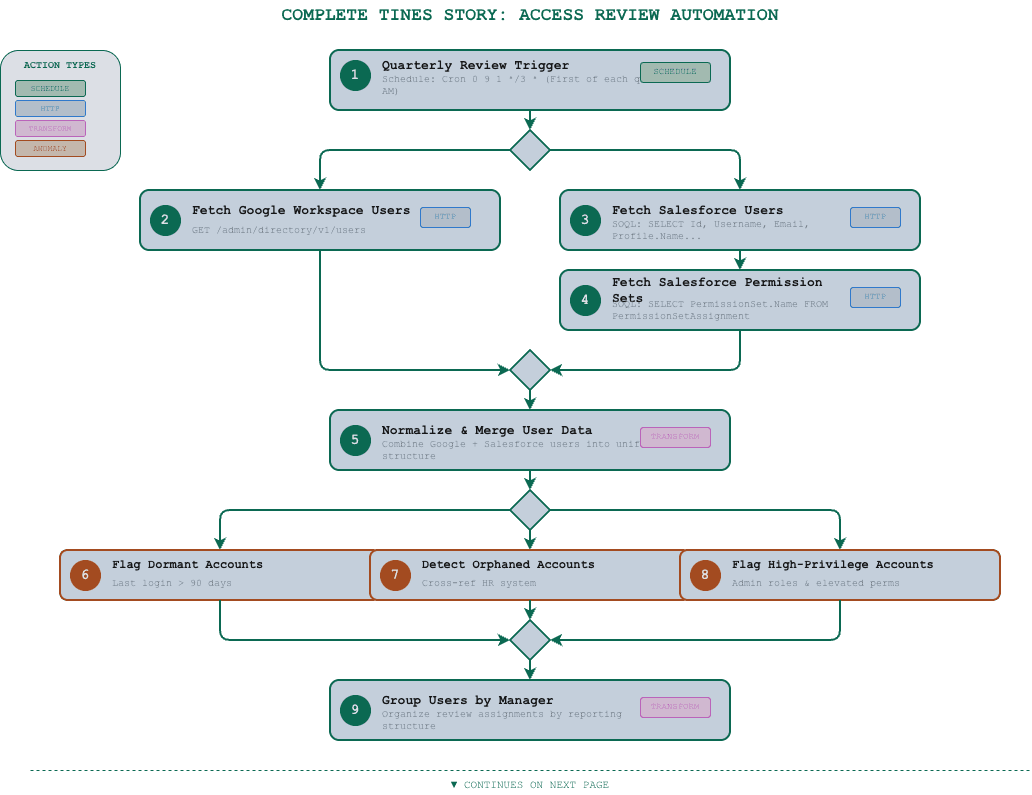
Putting It All Together: The Complete Workflow
Here's the final workflow architecture with all actions connected:
Testing Your Workflow
Before going live, test each phase independently:
1.Test API Authentication: Run Actions 2-4 manually and verify you get valid responses
2.Test Data Transforms: Check that Actions 5-9 produce expected user lists with flags
3.Test Email Delivery: Send a test review request to yourself before looping through all managers
4.Test Form Submission: Submit the Page form and verify the Webhook receives the payload
5.Test Audit Logging: Confirm rows appear in your Google Sheet with correct data
THE BOTTOM LINE
> compiling insights...
> workflow_actions: 15
> lines_of_code: ZERO
> manual_effort: ELIMINATED
> audit_evidence: AUTOMATIC
> status: BUILD_COMPLETE
You now have a complete, working automated access review workflow. Let's recap what we built:
✓Authentication: OAuth 2.0 credentials for Google Workspace and Salesforce
✓Data Collection: API integrations pulling users and permissions from both platforms
✓Anomaly Detection: Automatic flagging of dormant accounts, orphaned accounts, and high-privilege users
✓Manager Workflow: Personalized email requests with direct links to review forms
✓Audit Trail: Every decision logged with timestamps, justifications, and reviewer identity
What used to take 4-6 weeks now runs automatically. Managers get clean, contextualized requests instead of 500-row spreadsheets. You get timestamped audit evidence generated in real-time. No more chasing responses. No more manual data collection.
What's Next: Part 3
In Part 3, we'll take this foundation and level up:
→Automated Remediation: Actually revoke access via API when managers mark accounts for removal
→Continuous Monitoring: Move from quarterly reviews to real-time access change detection
→Ticketing Integration: Create Jira/ServiceNow tickets for flagged accounts and track remediation
→Compliance Reporting: Generate SOC 2 / ISO 27001 evidence packages automatically
→Escalation Workflows: Auto-escalate non-responders and track SLA compliance
The manual access review era is over. The automation is here—and it compounds with every review cycle.
Welcome to The Illumenati. The enlightened don't export spreadsheets and chase managers. They engineer their way out.
Stay enlightened. Part 3 is live — read it here.
> transmission_complete
> workflow_exported: SUCCESS
> part_3_loading...
> stay_enlightened█
The Illumenati // Boutique GRC for the AI-First Era // illumen.io